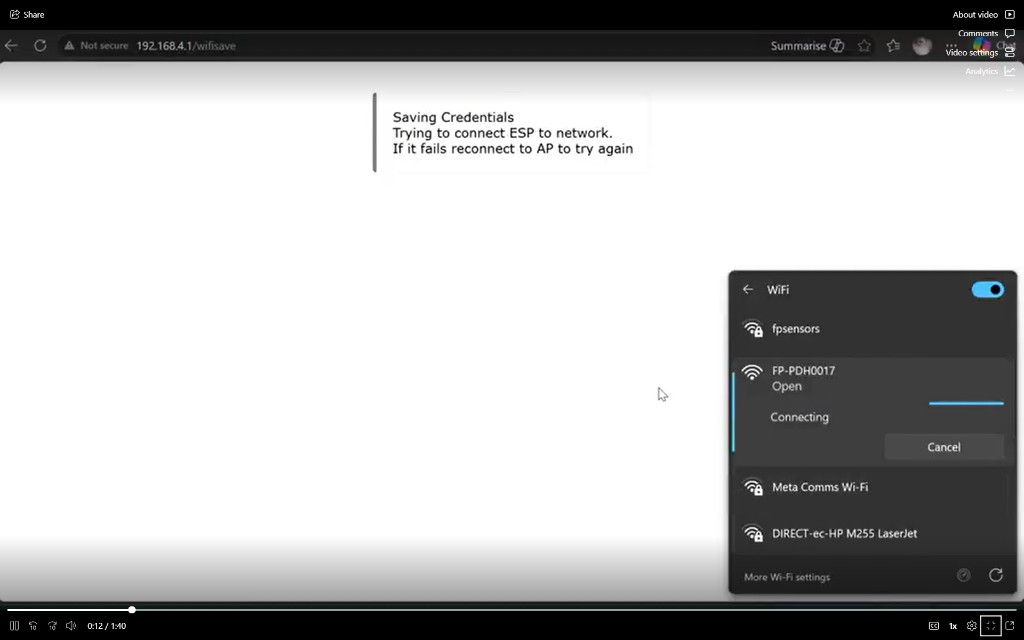
1. Join the FP-PDH… Wi-Fi
Power the AIRlert Gateway HUB. From your phone or laptop, open Wi-Fi settings and join the open network FP-PDH… (e.g. FP-PDH0017).
Use the hub’s on-board captive portal — no app or cable, just a phone or laptop. Follow the four steps below.
1. Join the FP-PDH… Wi-Fi
Power the AIRlert Gateway HUB. From your phone or laptop, open Wi-Fi settings and join the open network FP-PDH… (e.g. FP-PDH0017).
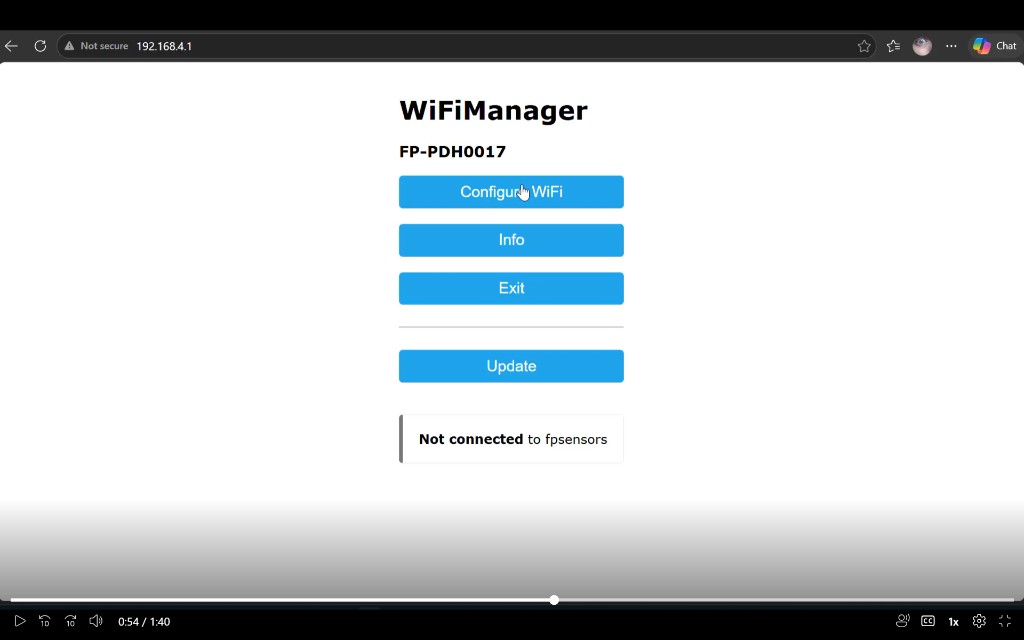
2. Open the captive portal
A captive page should open automatically. If not, browse to http://192.168.??.?? (the exact address is on the hub label / boot screen — the first two octets are always 192.168). On the WiFiManager screen tap Configure WiFi.
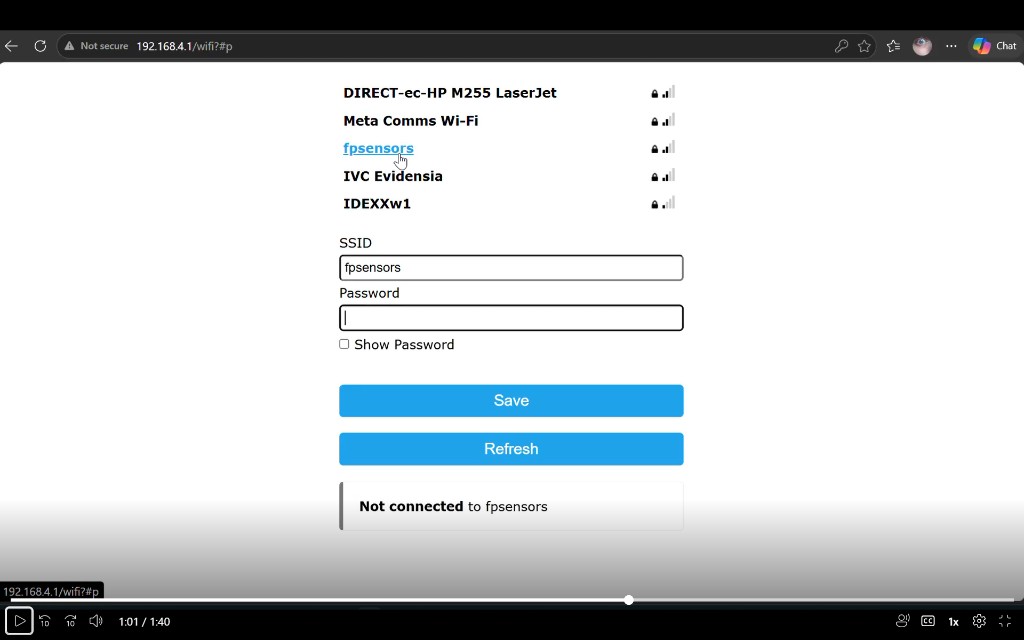
3. Pick your router, enter the password
Choose your site Wi-Fi (or type the SSID), enter the password, then tap Save. Tap Refresh first if your network is missing from the list.
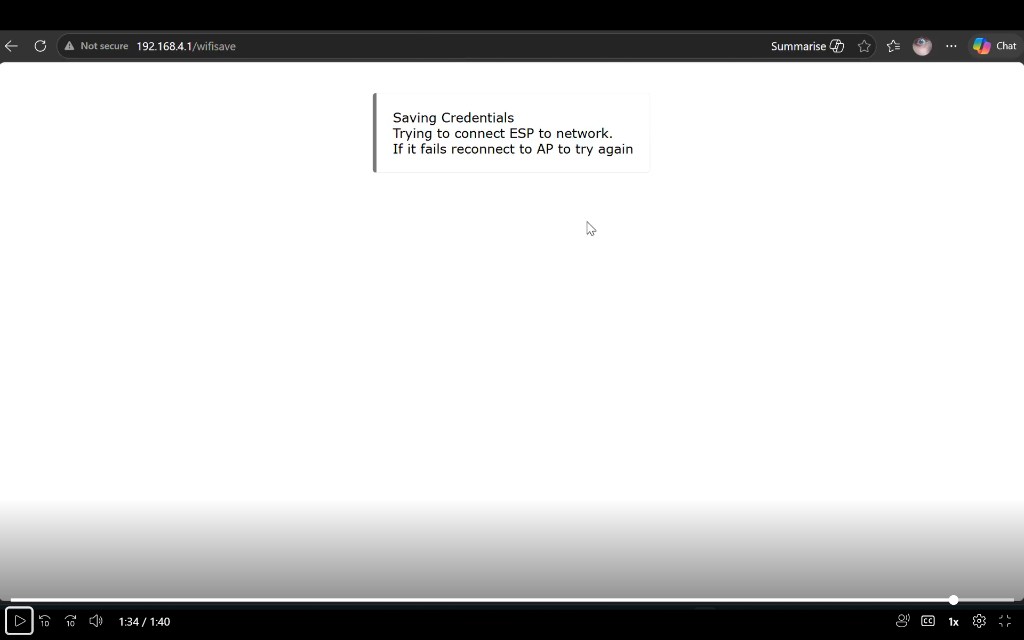
4. Saving Credentials
Wait ~30 s while the hub joins your Wi-Fi. The FP-PDH… AP disappears once it succeeds. If it fails, power-cycle and try again.
Tips: 2.4 GHz SSIDs only; passwords are case-sensitive. If the captive page does not open automatically, browse to http://192.168.??.?? (see step 2 above for the exact address). If a connection attempt fails, power-cycle the hub and the FP-PDH… network will return so you can try again.
Partner developers can view how AIRlert sends selected HUB messages to a receiving HTTPS endpoint.
Open API partner guide Download guide OpenAPI JSON Smart home / VHUB guide
Once the hub is online, finish provisioning in the LIVE BOARD or open the LIVE BOARD manual for day-to-day usage.